Upgrade in place
Best when Windows is working and the device meets requirements. Keep files/apps where possible, then run updates and driver checks afterward.
Least disruptiveWindows 10/11
A DR FRED guide for clean Windows setup, bootable USB creation, backup checks, activation safety, BIOS/UEFI booting, driver finishing, and the most common installation errors.
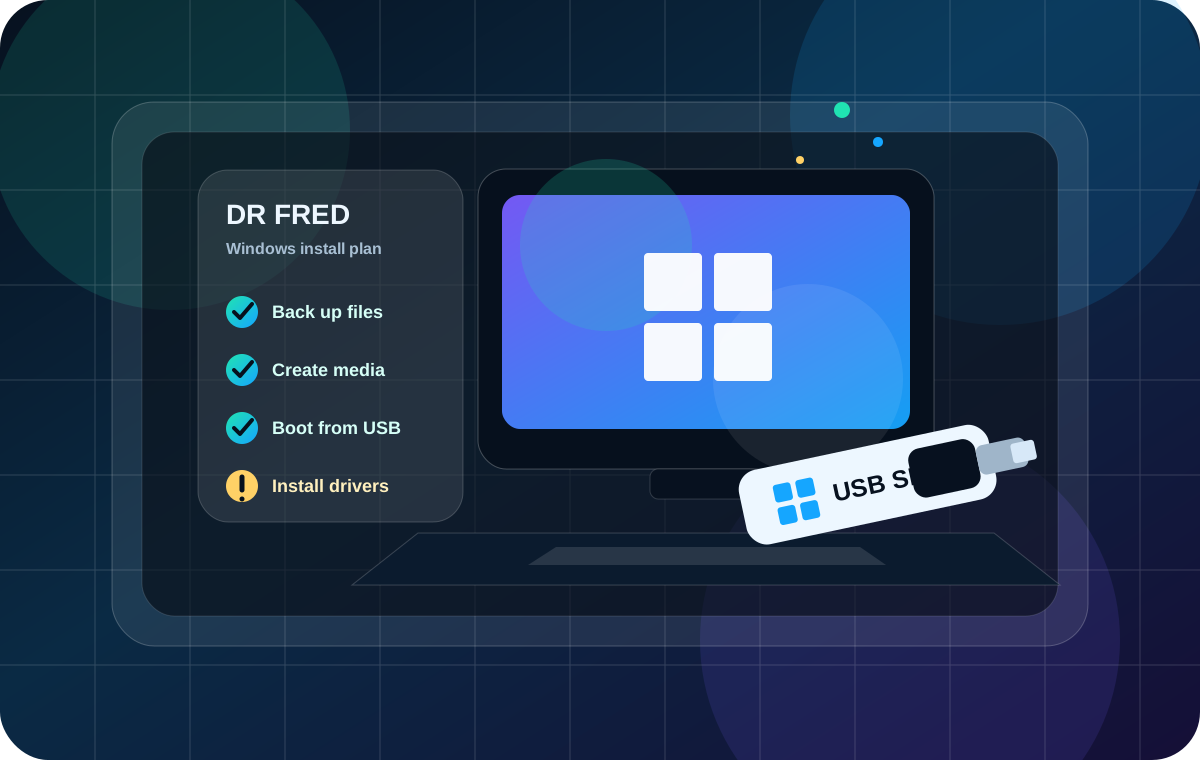
Back up documents, photos, browser passwords, activation details, and business files before reinstalling. A clean install can erase the selected drive. Also save BitLocker recovery keys before boot repair or partition work.
Use the least destructive option that solves the issue. Upgrade, repair install, reset, or clean install should be selected based on the condition of files, drivers, storage health, and activation.
Best when Windows is working and the device meets requirements. Keep files/apps where possible, then run updates and driver checks afterward.
Best for badly corrupted Windows, infected systems, reused PCs, or new drives. Requires a blank USB flash drive and careful partition selection.
Useful when Windows still boots. Mount the ISO and run setup.exe to repair/upgrade without booting from USB, after checking compatibility.
This is the neat version customers can follow and technicians can use as a service checklist.
Ask whether the customer wants upgrade, reinstall, clean installation, account recovery, or new-drive setup. Confirm device model, Windows edition, and whether important files are backed up.
Connect charger, remove unnecessary USB devices, record Wi‑Fi password, save BitLocker recovery key, export browser bookmarks/passwords if needed, and copy files to external storage.
Use Microsoft’s Windows download page or the Media Creation Tool. Avoid “pre-activated,” cracked, or repacked Windows installers because they can carry malware and licensing problems.
Run the Media Creation Tool as administrator, select language/edition/architecture, and write to a blank USB flash drive. Remember: the tool deletes content on that USB drive.
Insert the USB, restart, and open the boot menu. Common keys include F12, F9, F11, Esc, Del, or F2 depending on brand. Choose the UEFI USB entry when available.
Select language and edition matching the license. During clean install, delete/format partitions only when the right disk is confirmed and the backup is complete.
Run Windows Update, install manufacturer drivers, check activation, restore files, install essential software, configure browser/PDF/printer tools, and create a restore point.
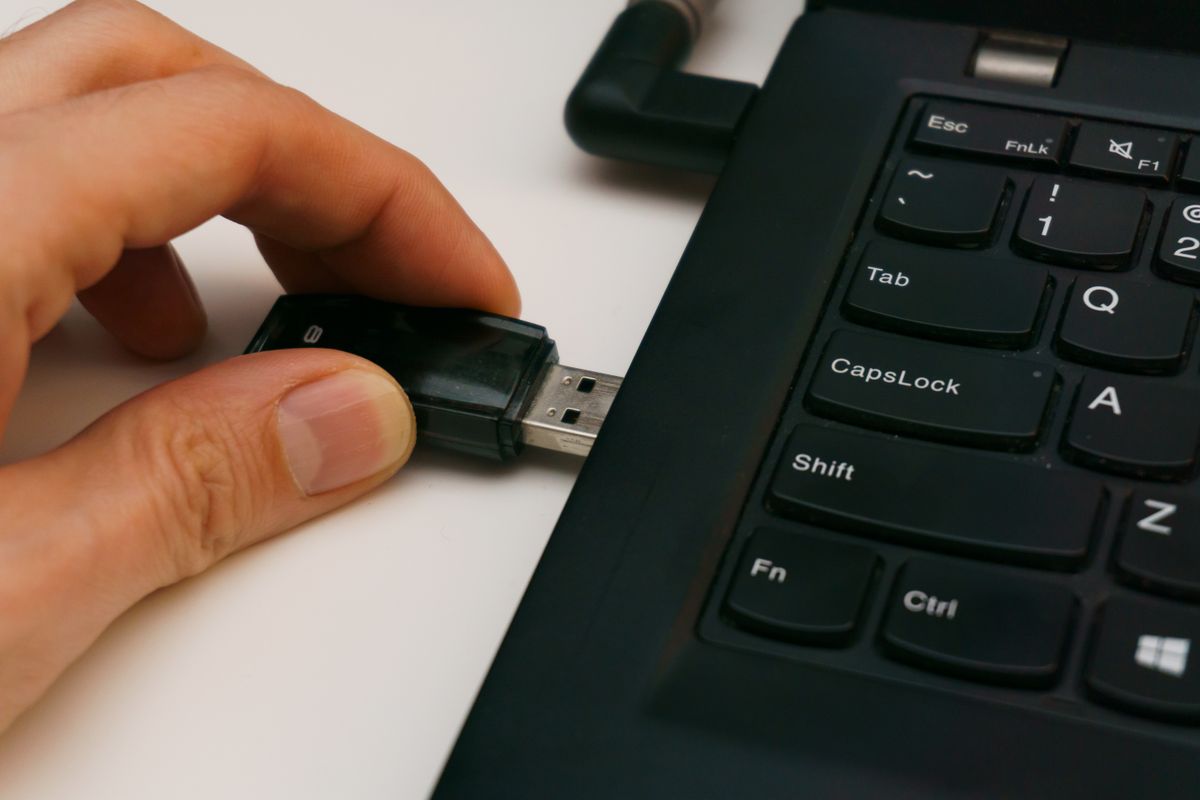
Customers search this constantly because it feels scary. DR FRED explains the USB process in simple language: download, create, boot, install, update.
These do not install Windows by themselves. They help identify the PC, verify ISO integrity, and collect information before/after setup.
slmgr /xprmsinfo32Get-FileHash $env:USERPROFILE\Downloads\Win11.iso -Algorithm SHA256Get-ComputerInfo | Select-Object WindowsProductName, WindowsVersion, OsBuildNumber, CsManufacturer, CsModel| Problem | Likely cause | DR FRED fix direction |
|---|---|---|
| USB not showing in boot menu | Wrong boot mode, damaged USB, Secure Boot/UEFI setting, or incomplete media | Recreate USB with the official tool, try another port, select UEFI USB, or check brand-specific boot key. |
| “This PC can’t run Windows 11” | Unsupported CPU, TPM/Secure Boot disabled, or missing requirements | Check PC Health/Windows specifications, enable supported firmware settings only when appropriate, and avoid unsupported installs for customer machines. |
| Drive not visible during setup | Storage controller driver missing, RAID/VMD mode, or failing drive | Check BIOS storage mode, load official storage driver from manufacturer, and test disk health before installing. |
| Activation fails after install | Wrong edition installed or license not linked | Install the edition matching the license, sign into the Microsoft account used for digital license, or use the original 25-character key. |
| No internet after install | Missing Wi‑Fi/LAN driver | Use Ethernet/USB tethering if possible, download network driver from manufacturer on another device, then run Windows Update. |
| Setup loops back to install screen | PC keeps booting from USB after first restart | Remove USB after the first installation reboot or set internal drive first in boot order. |
Finish with drivers, updates, browser, PDF tools, office tools, ZIP utility, media player, meeting app, printer drivers, restore point, and a short support report.